Saved content and highlights
Keep the best community content ready for your socials and patch notes.
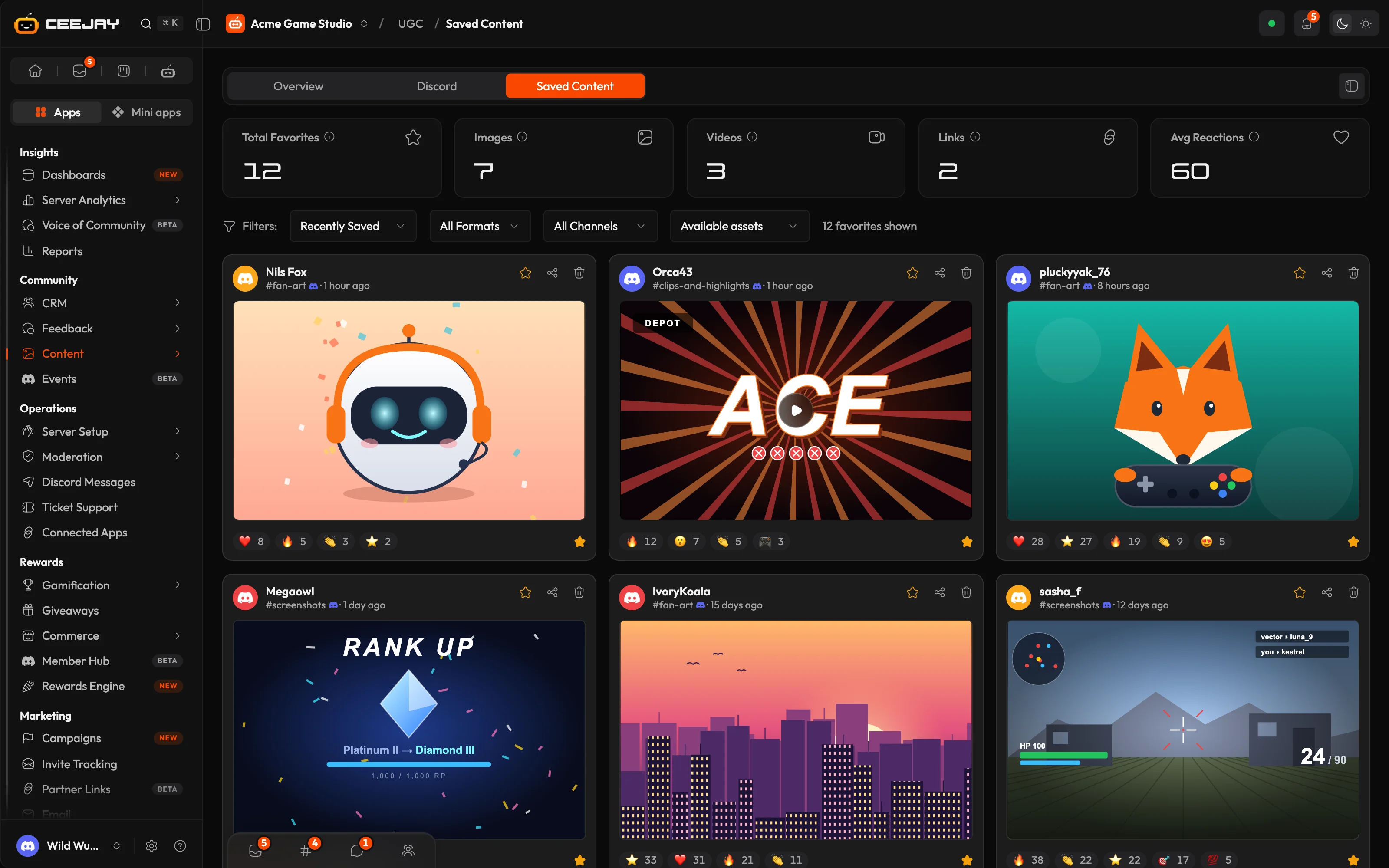


What studios get from saved content
Keep your community's best content ready to use
Star a post in User Content to save it with its creator, channel and reactions, so fan art and clips are ready for a social post or a newsletter.
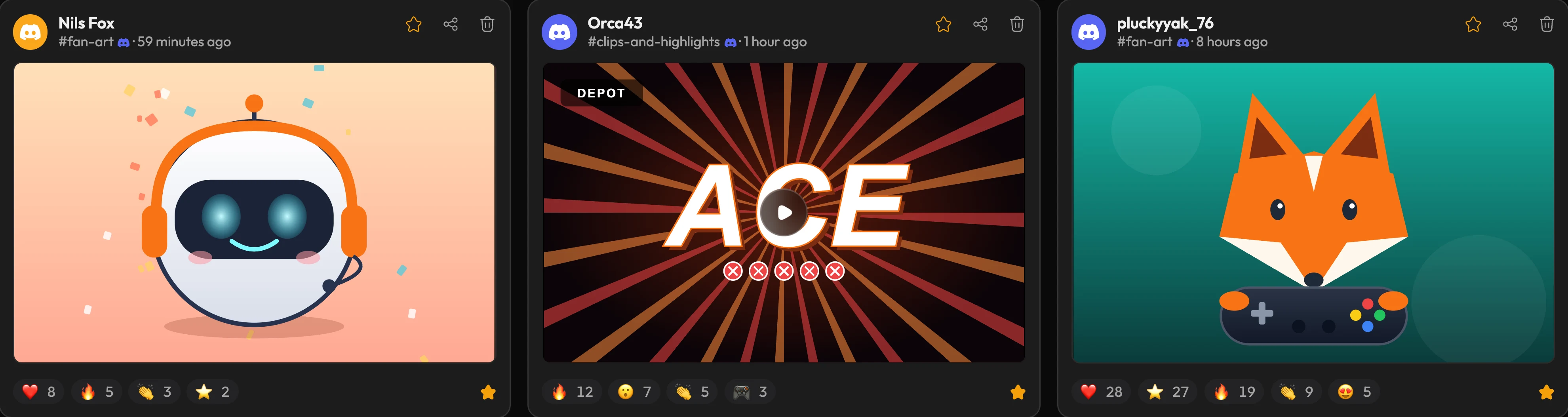

Save a post from Discord with one click
Right-click a message in Discord and choose Save post, or save it from the menu on a Starboard post. Either way it is added to Saved Content, ready for your team.
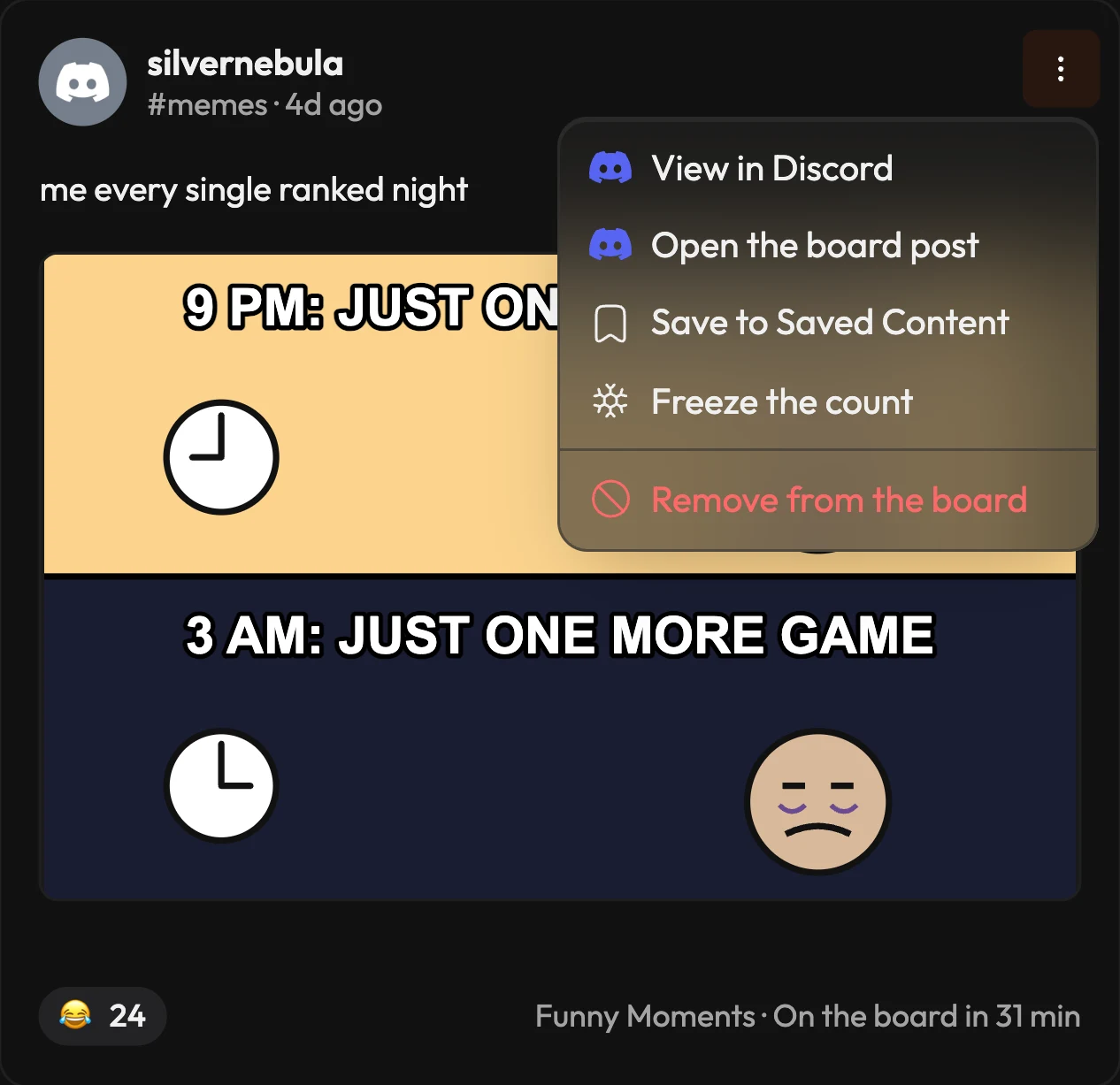


Thank the members behind your best posts
Every saved post shows the member who shared it and the channel it came from, so you can credit the creator when you feature their work.
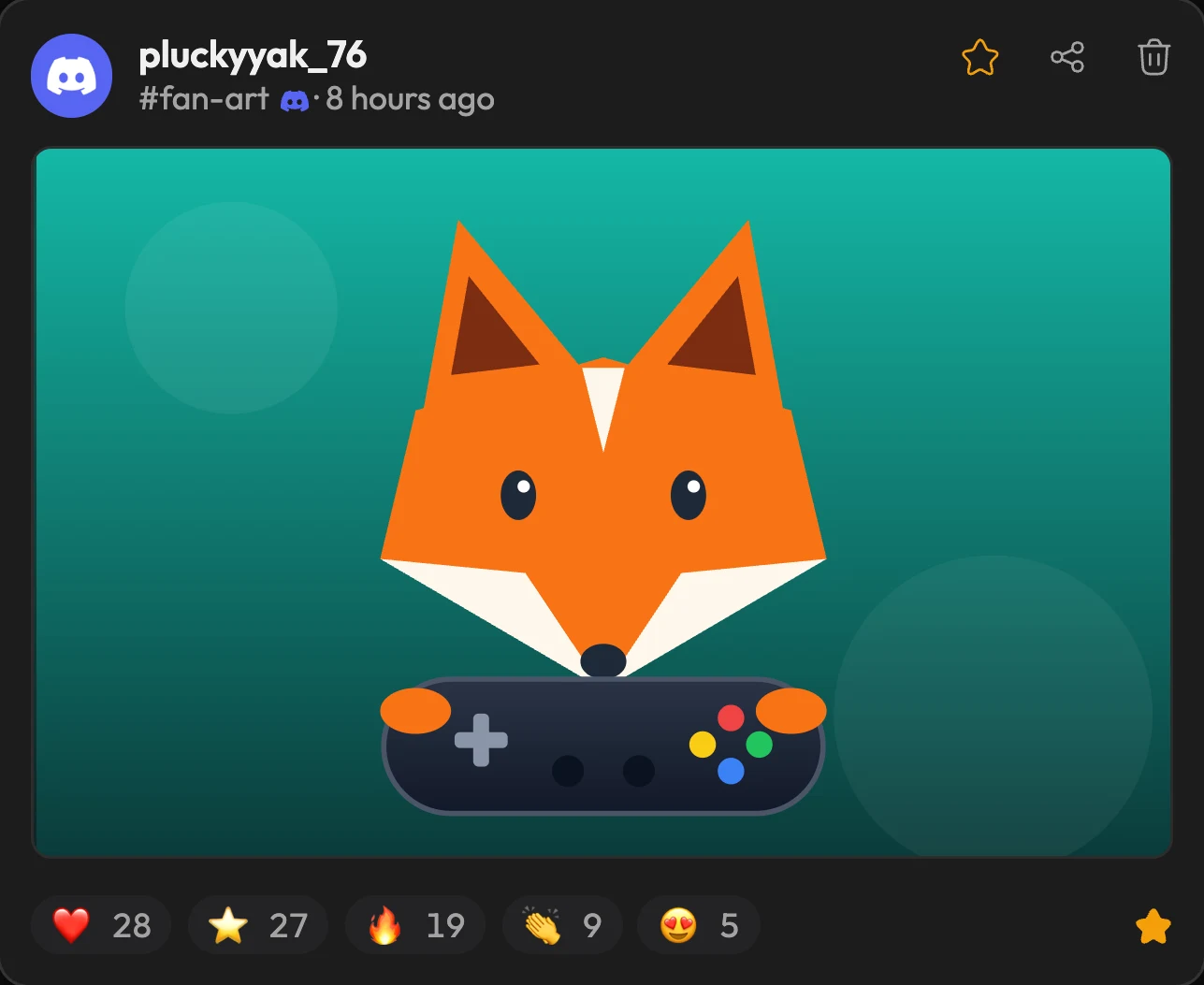


Star it in User Content, save it from the menu on a Starboard post, or right-click a message in Discord and choose Save post.
By default, moderators. You choose which roles and channels can use it in your command settings.
No. Saving adds the post to Saved Content and leaves the original message where it is.
Yes. Every plan includes every app. Plans differ by community size, editor seats and AI use.




Get started with CEEJAY
Book a demo of CEEJAY, or get a free launch plan for your server from our team.